<?xml version="1.0" encoding="utf-8"?><feed xmlns="http://www.w3.org/2005/Atom" ><generator uri="https://jekyllrb.com/" version="3.9.2">Jekyll</generator><link href="https://letsmakeaprogram.com//feed.xml" rel="self" type="application/atom+xml" /><link href="https://letsmakeaprogram.com//" rel="alternate" type="text/html" /><updated>2022-04-03T20:39:22+00:00</updated><id>https://letsmakeaprogram.com//feed.xml</id><title type="html">Let’s Make a Program</title><subtitle>If programming were a swimming pool, this site would be you diving right in to learn how to swim.</subtitle><author><name>Noah Wright</name><email>noah@noahwright.dev</email></author><entry><title type="html">Hello, World! (C#) Part 2</title><link href="https://letsmakeaprogram.com//hello-world-csharp-2/" rel="alternate" type="text/html" title="Hello, World! (C#) Part 2" /><published>2022-03-26T00:00:00+00:00</published><updated>2022-03-26T00:00:00+00:00</updated><id>https://letsmakeaprogram.com//hello-world-csharp-2</id><content type="html" xml:base="https://letsmakeaprogram.com//hello-world-csharp-2/"><![CDATA[<p>If you haven’t already, do <a href="/hello-world-csharp/">Hello World Part 1</a>.</p>

<h2 id="end-result">End Result</h2>
<p>A simple console app that takes some user input and displays different things depending on that input.</p>

<h2 id="user-input">User Input</h2>
<p>When we left off, we had a console app that said “Hello, World!” in the console.  No matter how many times you run it, the same thing will happen.</p>

<p><em>Pretty boring</em>, right?</p>

<p>Most computer programs take some sort of input so that they can do <em>different</em> things depending on that input.  So let’s get some user input!  If you think back to last time, we used <code class="language-plaintext highlighter-rouge">Console.ReadLine()</code> to stop the program from closing until you hit Enter.  We changed it to <code class="language-plaintext highlighter-rouge">ReadKey()</code> so any key would work, but let’s change it back and try something out.  Your code should look like this:</p>

<div class="language-csharp highlighter-rouge"><div class="highlight"><pre class="highlight"><code><span class="n">Console</span><span class="p">.</span><span class="nf">WriteLine</span><span class="p">(</span><span class="s">"Hello, World!"</span><span class="p">);</span>
<span class="n">Console</span><span class="p">.</span><span class="nf">WriteLine</span><span class="p">(</span><span class="s">"Press any key to continue..."</span><span class="p">);</span>
<span class="n">Console</span><span class="p">.</span><span class="nf">ReadLine</span><span class="p">();</span>
</code></pre></div></div>

<p>Run your code, and instead of immediately hitting Enter, try typing things in first and <em>then</em> hitting Enter.  You may be wondering, <em>“where did that input go?”</em>  Well, we’re about to find out!</p>

<h2 id="return-values">Return Values</h2>

<p>As it turns out, every statement in code has a <em>return value</em>.  Think of like this: every action has a <em>reaction</em>.  So when you call <code class="language-plaintext highlighter-rouge">ReadLine()</code> it returns a value.  In Visual Studio, if you hover over <code class="language-plaintext highlighter-rouge">ReadLine()</code> you’ll see the word <code class="language-plaintext highlighter-rouge">string</code> appear next to the name.</p>

<p>A <code class="language-plaintext highlighter-rouge">string</code> is a “string of characters” - this could be a word, a sentence, a whole paragraph, a single letter, or nothing at all (i.e.: an <em>empty</em> string).  So when you type things into the console and hit Enter, <code class="language-plaintext highlighter-rouge">ReadLine()</code> gives the string of characters you typed back to the code.</p>

<p><em>Yeah, but where did it go?</em></p>

<p>Well, nowhere… yet!</p>

<h2 id="variables">Variables</h2>

<p>To keep track of the response, we need to store it.  This is what <strong>variables</strong> are for.  Remember algebra?  Things like <code class="language-plaintext highlighter-rouge">2x + 5y = 3z</code>?  <code class="language-plaintext highlighter-rouge">x</code>, <code class="language-plaintext highlighter-rouge">y</code>, and <code class="language-plaintext highlighter-rouge">z</code> are variables - they’re basically just placeholders that could represent any number.  We can make a variable in code for the same reason, but it can store any type of data - not just numbers.  In this case, we need to make a <code class="language-plaintext highlighter-rouge">string</code> to store the <code class="language-plaintext highlighter-rouge">string</code> response from <code class="language-plaintext highlighter-rouge">ReadLine()</code>.  We do it like this:</p>

<div class="language-csharp highlighter-rouge"><div class="highlight"><pre class="highlight"><code><span class="kt">string</span> <span class="n">result</span> <span class="p">=</span> <span class="n">Console</span><span class="p">.</span><span class="nf">ReadLine</span><span class="p">();</span>
<span class="n">Console</span><span class="p">.</span><span class="nf">WriteLine</span><span class="p">(</span><span class="n">result</span><span class="p">);</span>
<span class="n">Console</span><span class="p">.</span><span class="nf">ReadKey</span><span class="p">();</span>
</code></pre></div></div>

<p>The first line does a few things:</p>
<ul>
  <li><code class="language-plaintext highlighter-rouge">string</code> specifies the type of the variable</li>
  <li><code class="language-plaintext highlighter-rouge">result</code> is the name of the variable.  It has to start with a letter and can’t have spaces, but can otherwise be whatever you want!</li>
  <li><code class="language-plaintext highlighter-rouge">=</code> isn’t exactly what it meant in algebra.  It means “put the value on the right into the variable on the left”.</li>
</ul>

<p>Altogether, it is taking the value from the right side (i.e.: <code class="language-plaintext highlighter-rouge">Console.ReadLine()</code>) and assigning that into the variable on the left side (i.e.: <code class="language-plaintext highlighter-rouge">result</code>).  The next line is writing the <code class="language-plaintext highlighter-rouge">result</code> variable back out to the console so we can see it.  Finally, we <code class="language-plaintext highlighter-rouge">ReadKey()</code> so the console won’t automatically close.  Run your code a few times and try typing different things (or nothing!) and see what happens.</p>

<h2 id="concatenation">Concatenation</h2>
<p>Let me guess: you’re pretty underwhelmed by the above example.  Let’s do something more than just print the same variable right back out!</p>

<p>Here’s the idea: the program will ask for your name and then say “Hello, Noah!” instead of “Hello, World!”.  First, let’s give our user a prompt:</p>

<div class="language-csharp highlighter-rouge"><div class="highlight"><pre class="highlight"><code><span class="n">Console</span><span class="p">.</span><span class="nf">Write</span><span class="p">(</span><span class="s">"Enter your name: "</span><span class="p">);</span>
<span class="kt">string</span> <span class="n">name</span> <span class="p">=</span> <span class="n">Console</span><span class="p">.</span><span class="nf">ReadLine</span><span class="p">();</span>
</code></pre></div></div>
<p>Notice I used <code class="language-plaintext highlighter-rouge">Write</code> rather than <code class="language-plaintext highlighter-rouge">WriteLine</code> so that their input will show up on the same line!  Now, let’s say hello:</p>

<div class="language-csharp highlighter-rouge"><div class="highlight"><pre class="highlight"><code><span class="n">Console</span><span class="p">.</span><span class="nf">WriteLine</span><span class="p">(</span><span class="s">"Hello, "</span> <span class="p">+</span> <span class="n">name</span> <span class="p">+</span> <span class="s">"!"</span><span class="p">);</span>
</code></pre></div></div>
<p>Here, the <code class="language-plaintext highlighter-rouge">+</code> serves as the “concatenation” operator.  Concatenation is a fancy way of saying “mash these two <code class="language-plaintext highlighter-rouge">string</code>s together.  Run your code and type your name to see what happens!</p>

<p>Let’s go one step further and ask for your <em>last</em> name and print it out as well!  See if you can figure it out yourself before scrolling down, but the final product will look like this:</p>

<div class="language-csharp highlighter-rouge"><div class="highlight"><pre class="highlight"><code><span class="n">Console</span><span class="p">.</span><span class="nf">Write</span><span class="p">(</span><span class="s">"Enter your first name: "</span><span class="p">);</span>
<span class="kt">string</span> <span class="n">firstName</span> <span class="p">=</span> <span class="n">Console</span><span class="p">.</span><span class="nf">ReadLine</span><span class="p">();</span>
<span class="n">Console</span><span class="p">.</span><span class="nf">Write</span><span class="p">(</span><span class="s">"Enter your last name: "</span><span class="p">);</span>
<span class="kt">string</span> <span class="n">lastName</span> <span class="p">=</span> <span class="n">Console</span><span class="p">.</span><span class="nf">ReadLine</span><span class="p">();</span>
<span class="n">Console</span><span class="p">.</span><span class="nf">WriteLine</span><span class="p">(</span><span class="s">"Hello, "</span> <span class="p">+</span> <span class="n">firstName</span> <span class="p">+</span> <span class="s">" "</span> <span class="p">+</span> <span class="n">lastName</span> <span class="p">+</span> <span class="s">"!"</span><span class="p">);</span>
</code></pre></div></div>
<p>It works, but I bet you can imagine how gross it would look if we added a middle name, suffix, etc.  Could there be a better way… 🤔</p>

<h2 id="prettier-concatenation">Prettier Concatenation</h2>
<p>A while back, Microsoft added “string interpolation” to C#’s bag of tricks.  That’s a fancy way of saying that there’s now a way to mix variables right into your strings, and all you need is a dollar sign <code class="language-plaintext highlighter-rouge">$</code> and some curly braces <code class="language-plaintext highlighter-rouge">{}</code>.  We can change our <code class="language-plaintext highlighter-rouge">WriteLine</code> to look like this:</p>

<div class="language-csharp highlighter-rouge"><div class="highlight"><pre class="highlight"><code><span class="n">Console</span><span class="p">.</span><span class="nf">WriteLine</span><span class="p">(</span><span class="s">$"Hello, </span><span class="p">{</span><span class="n">firstName</span><span class="p">}</span><span class="s"> </span><span class="p">{</span><span class="n">lastName</span><span class="p">}</span><span class="s">!"</span><span class="p">);</span>
</code></pre></div></div>
<p>The <code class="language-plaintext highlighter-rouge">$</code> lets C# know you want to use string interpolation, and the curly braces let C# know where the variables start and end.  Try running it with and without the <code class="language-plaintext highlighter-rouge">$</code> and see what happens.</p>

<h2 id="conditionals">Conditionals</h2>
<p>Have you tried hitting enter without giving a response?  What happens?  Did you get a message like <code class="language-plaintext highlighter-rouge">Hello,  !</code>?  Let’s put some logic in so that our user <em>has</em> to enter something.</p>

<p>What we need to know is <code class="language-plaintext highlighter-rouge">if</code> the user entered something or not.  <code class="language-plaintext highlighter-rouge">if</code> the input was blank, we need to ask for their first name again.  We can do it like this:</p>

<div class="language-csharp highlighter-rouge"><div class="highlight"><pre class="highlight"><code><span class="n">Console</span><span class="p">.</span><span class="nf">Write</span><span class="p">(</span><span class="s">"Enter your first name: "</span><span class="p">);</span>
<span class="kt">string</span> <span class="n">firstName</span> <span class="p">=</span> <span class="n">Console</span><span class="p">.</span><span class="nf">ReadLine</span><span class="p">();</span>
<span class="k">if</span> <span class="p">(</span><span class="n">firstName</span> <span class="p">==</span> <span class="s">""</span><span class="p">)</span>
<span class="p">{</span>
    <span class="n">Console</span><span class="p">.</span><span class="nf">Write</span><span class="p">(</span><span class="s">"Enter your first name: "</span><span class="p">);</span>
    <span class="n">firstName</span> <span class="p">=</span> <span class="n">Console</span><span class="p">.</span><span class="nf">ReadLine</span><span class="p">();</span>
<span class="p">}</span>
</code></pre></div></div>

<p>Notice the <code class="language-plaintext highlighter-rouge">if</code> statement.  It looks at what’s in the parentheses after it to see if it’s <code class="language-plaintext highlighter-rouge">true</code> or <code class="language-plaintext highlighter-rouge">false</code>.  In those parentheses you’ll see <code class="language-plaintext highlighter-rouge">firstName == ""</code> - notice the double equals <code class="language-plaintext highlighter-rouge">==</code>.  Like we learned above, a single equals <code class="language-plaintext highlighter-rouge">=</code> stuffs a value into a variable.  A double equals <code class="language-plaintext highlighter-rouge">==</code> does a comparison.  If the things on each side of <code class="language-plaintext highlighter-rouge">==</code> are equal, it will evaluate to <code class="language-plaintext highlighter-rouge">true</code>.  Otherwise, it evaluates to <code class="language-plaintext highlighter-rouge">false</code>.</p>

<p><strong>QUICK ASIDE</strong>: You may have noticed that <code class="language-plaintext highlighter-rouge">string</code> is missing next to <code class="language-plaintext highlighter-rouge">firstName</code> inside of the <code class="language-plaintext highlighter-rouge">if</code> statement.  That’s because we only need to specify the type when a variable is first defined.  <code class="language-plaintext highlighter-rouge">firstName</code> already exists above, so we don’t need to define it again.  Try putting <code class="language-plaintext highlighter-rouge">string</code> there and you’ll see that Visual Studio stops you, saying that name is already used!  Moving on:</p>

<p>If the statement in <code class="language-plaintext highlighter-rouge">if</code>’s parentheses evaluates to <code class="language-plaintext highlighter-rouge">true</code>, it will run the commands in its curly braces <code class="language-plaintext highlighter-rouge">{}</code>.  If it is <code class="language-plaintext highlighter-rouge">false</code>, those commands get skipped.  Run your new code and see what happens if you do or do not give a first name.</p>

<p>Did you try giving a bad name more than once?  It proceeds on to the next part.  Why?  Because <code class="language-plaintext highlighter-rouge">if</code> only checks things <em>once</em>.  If we want it to check twice, we would need <em>two</em> <code class="language-plaintext highlighter-rouge">if</code> statements.  But we don’t know how many times our user will enter bad input, so we need to try something else.</p>

<h2 id="loops">Loops</h2>
<p>What we need to do is <em>keep on checking</em> until we get good input.  In other words, <code class="language-plaintext highlighter-rouge">while</code> the input is bad, we should ask for it again.  So make one teeny tiny change - instead of <code class="language-plaintext highlighter-rouge">if</code>, use <code class="language-plaintext highlighter-rouge">while</code>:</p>

<div class="language-csharp highlighter-rouge"><div class="highlight"><pre class="highlight"><code><span class="k">while</span> <span class="p">(</span><span class="n">firstName</span> <span class="p">==</span> <span class="s">""</span><span class="p">)</span>
<span class="p">{</span>
    <span class="n">Console</span><span class="p">.</span><span class="nf">Write</span><span class="p">(</span><span class="s">"Enter your first name: "</span><span class="p">);</span>
    <span class="n">firstName</span> <span class="p">=</span> <span class="n">Console</span><span class="p">.</span><span class="nf">ReadLine</span><span class="p">();</span>
<span class="p">}</span>
</code></pre></div></div>
<p>Run your code and check it out.  <strong>Hooray!</strong>  Before we do the same thing for <code class="language-plaintext highlighter-rouge">lastName</code>, look at the code again.  Notice how we have copy/pasted the exact same lines?  As a general rule of thumb, if you are copy/pasting code like that, there’s a better way of doing things.  In this case, we can remove the first time we prompt for the user’s name and instead do this:</p>

<div class="language-csharp highlighter-rouge"><div class="highlight"><pre class="highlight"><code><span class="kt">string</span> <span class="n">firstName</span> <span class="p">=</span> <span class="s">""</span><span class="p">;</span>
<span class="k">while</span> <span class="p">(</span><span class="n">firstName</span> <span class="p">==</span> <span class="s">""</span><span class="p">)</span>
<span class="p">{</span>
    <span class="n">Console</span><span class="p">.</span><span class="nf">Write</span><span class="p">(</span><span class="s">"Enter your first name: "</span><span class="p">);</span>
    <span class="n">firstName</span> <span class="p">=</span> <span class="n">Console</span><span class="p">.</span><span class="nf">ReadLine</span><span class="p">();</span>
<span class="p">}</span>
</code></pre></div></div>
<p>Let’s think about what’s happening here.  First, we put an empty string <code class="language-plaintext highlighter-rouge">""</code> into our variable <code class="language-plaintext highlighter-rouge">firstName</code>.  We then check to see if it equals <code class="language-plaintext highlighter-rouge">""</code> - of course it does, since we just set it to that value.  That guarantees that we’ll enter the <code class="language-plaintext highlighter-rouge">while</code> loop at least once.  Now our code is just a little less repetitive.</p>

<p>Do the same thing for <code class="language-plaintext highlighter-rouge">lastName</code> - set it to <code class="language-plaintext highlighter-rouge">""</code> and check it in a <code class="language-plaintext highlighter-rouge">while</code> loop.  When you’re done, your program should keep asking for your first name, then keep asking for your last name, then display that name.</p>

<p>That’s all for now!  Next time, we’ll look at variables of different types, a loop other than <code class="language-plaintext highlighter-rouge">while</code>, and some helpful things <code class="language-plaintext highlighter-rouge">string</code> can do for us.  For now, congratulate yourself, because:</p>
<blockquote>
  <p><strong>We made a program</strong>! 🎉</p>
</blockquote>]]></content><author><name>Noah Wright</name><email>noah@noahwright.dev</email></author><summary type="html"><![CDATA[If you haven’t already, do Hello World Part 1.]]></summary></entry><entry><title type="html">Hello, World! (C#) Part 1</title><link href="https://letsmakeaprogram.com//hello-world-csharp/" rel="alternate" type="text/html" title="Hello, World! (C#) Part 1" /><published>2022-03-12T00:00:00+00:00</published><updated>2022-03-12T00:00:00+00:00</updated><id>https://letsmakeaprogram.com//hello-world-csharp</id><content type="html" xml:base="https://letsmakeaprogram.com//hello-world-csharp/"><![CDATA[<p>If you have not already, please follow the <a href="/csharp/">instructions to get started with C#</a>.  As stated on that link, 
I <strong>highly</strong> recommend getting Visual Studio.  It’s totally free, and if you end up working in C#, it is likely what your
employer will use, so this let’s you “practice how you’ll play.”</p>

<p>Once you’re set up, let’s get right to it with the classic starter program: <strong>Hello World!</strong></p>

<h2 id="end-result">End Result</h2>
<p>A simple console application that spits out the message “Hello, World!” along with anything else we
decide to make it say!</p>

<h2 id="visual-studio-getting-started">Visual Studio: Getting Started</h2>
<p><em><strong>NOTE</strong>: If you decided to code in your browser or some other program, you can ignore these Visual Studio-specific setup instructions.</em></p>

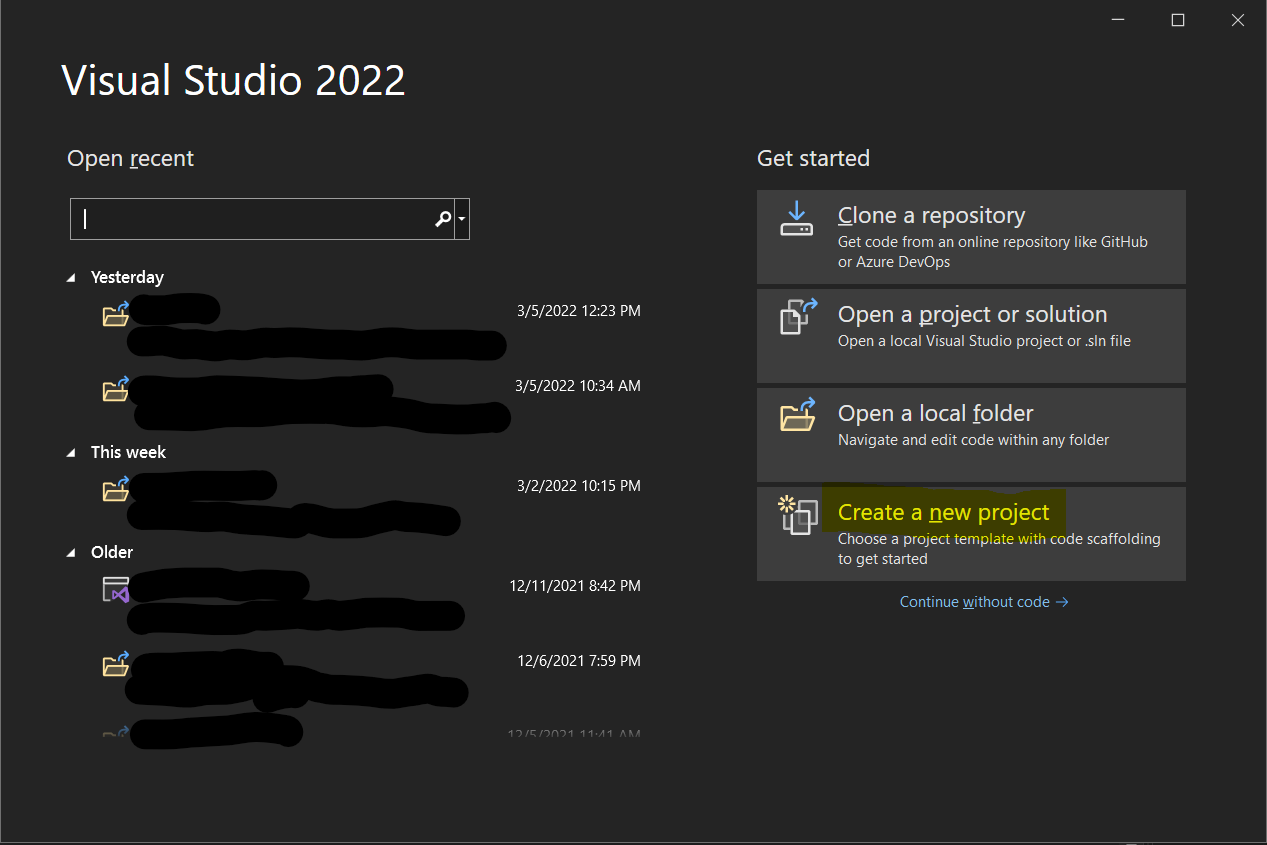
<p>When you first open Visual Studio, you’ll see a list of recently opened projects (yours will probably be blank) and options
to create new projects.  If you hadn’t already guessed, you’ll want to click “Create New Project”:</p>

<p><img src="../assets/images/post-content/visual-studio-new-project.png" alt="Visual Studio New Project" /></p>

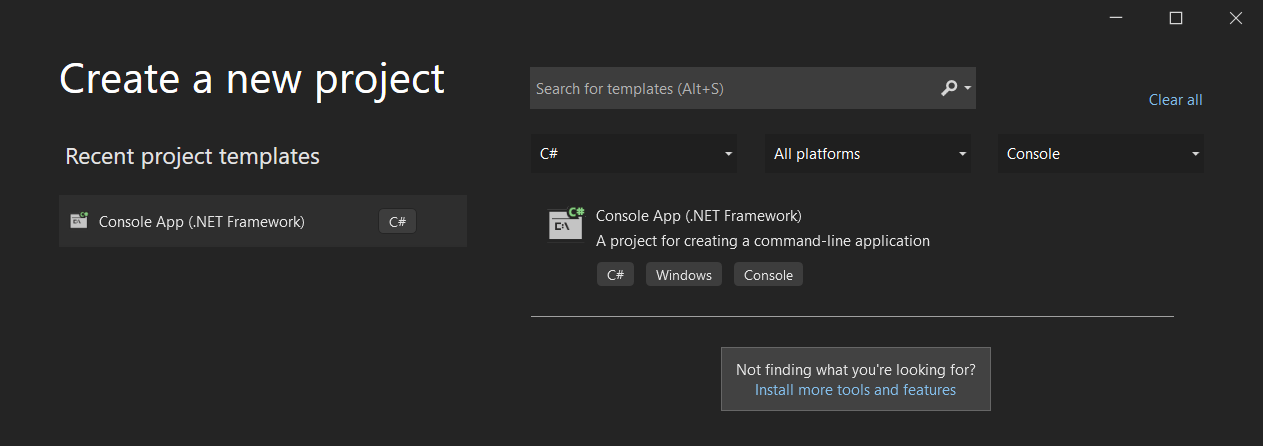
<p>Depending on what you picked during the installation, the next screen may show you a ton of different project types.  The
one you are looking for is called <em>Console App (.NET Framework)</em> and should have a C# file icon next to it.  You can use
the dropdowns at the top of the window to narrow things down to just C# and Console in order to find it really quickly.</p>

<p><img src="../assets/images/post-content/visual-studio-new-console-app.png" alt="Creating a C# Console Application" /></p>

<p>If you don’t see that option at all, you may need to open up the Visual Studio Installer and be sure to select “.NET desktop development”
as the package you want installed.</p>

<p>Once you select your project type, give it a name (e.g.: HelloWorld) and select where it will be saved.  The solution name 
will automatically change to match the project name - don’t worry about what a “solution” vs a “project” means right now.  For
the framework at the bottom, just go with the default that was selected.  For the record, mine was created using .NET Frameowrk 4.7.2.</p>

<h2 id="a-tour-of-the-new-visual-studio-project">A Tour of the New Visual Studio Project</h2>

<p>After your project is created, you’ll see what Visual Studio looks like.  On one side, you’ll see a list of files that were 
created for your project, and at the bottom you should see a window for console output or an error list.  Don’t worry about any 
of that for now - we’ll cover those when we need to.  For now, you only need to worry about one file: <code class="language-plaintext highlighter-rouge">Program.cs</code>.  It should have
opened automatically and be sitting in front of you.  You should see something like this:</p>

<div class="language-csharp highlighter-rouge"><div class="highlight"><pre class="highlight"><code><span class="k">using</span> <span class="nn">System</span><span class="p">;</span>
<span class="k">using</span> <span class="nn">System.Collections.Generic</span><span class="p">;</span>
<span class="k">using</span> <span class="nn">System.Linq</span><span class="p">;</span>
<span class="k">using</span> <span class="nn">System.Text</span><span class="p">;</span>
<span class="k">using</span> <span class="nn">System.Threading.Tasks</span><span class="p">;</span>

<span class="k">namespace</span> <span class="nn">HelloWorld</span>
<span class="p">{</span>
    <span class="k">internal</span> <span class="k">class</span> <span class="nc">Program</span>
    <span class="p">{</span>
        <span class="k">static</span> <span class="k">void</span> <span class="nf">Main</span><span class="p">(</span><span class="kt">string</span><span class="p">[]</span> <span class="n">args</span><span class="p">)</span>
        <span class="p">{</span>
        <span class="p">}</span>
    <span class="p">}</span>
<span class="p">}</span>
</code></pre></div></div>

<p>Before we write any additional code, let’s take a look at what Visual Studio did for us.</p>

<div class="language-csharp highlighter-rouge"><div class="highlight"><pre class="highlight"><code><span class="k">using</span> <span class="nn">System</span><span class="p">;</span>
<span class="k">using</span> <span class="nn">System.Collections.Generic</span><span class="p">;</span>
<span class="k">using</span> <span class="nn">System.Linq</span><span class="p">;</span>
<span class="k">using</span> <span class="nn">System.Text</span><span class="p">;</span>
<span class="k">using</span> <span class="nn">System.Threading.Tasks</span><span class="p">;</span>
</code></pre></div></div>

<p>These lines import various packages of code - don’t worry too much about what that means.  You may notice that they are all sort of greyed out - that’s because
our code isn’t actually using any of them.  Visual Studio just prepopulates the top of the file with common packages.
Having extra is totally harmless, so leave these alone.</p>

<div class="language-csharp highlighter-rouge"><div class="highlight"><pre class="highlight"><code><span class="k">namespace</span> <span class="nn">HelloWorld</span>
</code></pre></div></div>

<p>A namespace is a way to group various pieces of code.  If we exported our code into a package - again, don’t worry too much about all that - this namespace would be
what <em>other</em> code would put at the top, e.g.: <code class="language-plaintext highlighter-rouge">using HelloWorld;</code>.  We’re working with literally 1 file, so this also doesn’t matter much right now.</p>

<div class="language-csharp highlighter-rouge"><div class="highlight"><pre class="highlight"><code>    <span class="k">internal</span> <span class="k">class</span> <span class="nc">Program</span>
</code></pre></div></div>

<p>In C#, each file typically represents one class.  The Program.cs contains the <code class="language-plaintext highlighter-rouge">Program</code> class.  Once again, don’t worry about what a “class” is.  We’ll get to that
later, in projects where we use several files that have to reference each other.</p>

<div class="language-csharp highlighter-rouge"><div class="highlight"><pre class="highlight"><code>        <span class="k">static</span> <span class="k">void</span> <span class="nf">Main</span><span class="p">(</span><span class="kt">string</span><span class="p">[]</span> <span class="n">args</span><span class="p">)</span>
        <span class="p">{</span>
        <span class="p">}</span>
</code></pre></div></div>

<h2 id="understanding-program-flow">Understanding Program Flow</h2>
<p>Back in the day, programs were really simple.  The computer would start at the top of the file and run the first line, then the second, and so on until it hit the end
of the file.  These days, code can sprawl across many files and be a tangled mess of references between those files.  Thus, every program needs an “entry point” so the
computer knows where to start, since it can’t just go to line 1 of a single file.  <code class="language-plaintext highlighter-rouge">Main</code> is that entry point.  Think of it as the front door of your program.  Once you’re
in the door, you can travel to other parts of the code, but you have to start by going through the front.  Wondering what all the <code class="language-plaintext highlighter-rouge">args</code> mess is about?
You guessed it: don’t worry about it, we’ll get to that later. 😬</p>

<p>All you need to know is that <em>your</em> code will go between those curly braces.  Like code back in the day, the computer will still start at the top of <code class="language-plaintext highlighter-rouge">Main</code> and go line by 
line until it gets to the bottom.  Those curly braces are the boundaries for <code class="language-plaintext highlighter-rouge">Main</code>, so the computer knows where to start and stop once it enters the front door.</p>

<p><strong>Be aware</strong>: If you delete any of the curly braces, you’re going to confuse your computer.  Without these guidelines to let it know where things start and end, it will get <em>really</em>
confused.  In fact, try deleting one right now.  Give Visual Studio a second to process what you’ve done, and you’ll see squiggly red lines appear under some of the code - just
like you would if you misspelled something in a Word document.  The problem you created is at the line where you deleted a bracket, but notice where the red squiggly lines went.</p>

<p>If you deleted the first bracket <code class="language-plaintext highlighter-rouge">{</code>, you’ll see red lines under <code class="language-plaintext highlighter-rouge">Main</code>.  Hover your mouse over <code class="language-plaintext highlighter-rouge">Main</code> and Visual Studio will pop up the reason for the red lines.  It
tells you <code class="language-plaintext highlighter-rouge">Main</code> has to “declare a body” - in other words, it sees the front door, but it can’t tell what room that door is connected to because you bulldozed one of the walls.  What
about if you delete the second bracket <code class="language-plaintext highlighter-rouge">}</code>?  Now there is a red squiggly at the <em>very end</em>.  Visual Studio sees 3 opening brackets, but only 2 closing brackets.  Again, you
bulldozed one of the walls of this structure and now Visual Studio says “wait… there’s supposed to be a wall here!”</p>

<p>So this leads to my <strong>BIG FAT WARNING</strong>: Be very careful if you select a bunch of code and delete it.  When you inadvertently delete a curly brace, you’re going to wind up with red
squiggly lines <em>way far away</em> from where you’ve created a problem.  I’ve seen plenty of beginners hunting their code for way too long only to find out that they deleted a chunk of code
and left an extra curly brace or accidentally deleted one by accident.</p>

<h2 id="writing-your-first-code">Writing Your First Code</h2>

<p>If you haven’t yet, put your curly braces back below <code class="language-plaintext highlighter-rouge">Main</code>.  Put your cursor between them, hit your Enter key to get a new line, and write your <strong>very first line of code</strong>:</p>

<div class="language-csharp highlighter-rouge"><div class="highlight"><pre class="highlight"><code><span class="k">static</span> <span class="k">void</span> <span class="nf">Main</span><span class="p">(</span><span class="kt">string</span><span class="p">[]</span> <span class="n">args</span><span class="p">)</span>
<span class="p">{</span>
    <span class="n">Console</span><span class="p">.</span><span class="nf">WriteLine</span><span class="p">(</span><span class="s">"Hello, World!"</span><span class="p">);</span>
<span class="p">}</span>
</code></pre></div></div>

<p>Hooray!  You did it!  You wrote your first code! 🎉🎉</p>

<p><em>But what does it do?</em></p>

<p>Good question!  Let’s find out.  At the top, you should see a button with a green triangle - just like on a music player - that will have your project name (like “HelloWorld”)
next to it.  Click that (or for you shortcut-lovers, hit F5 on your keyboard) and see what happens.</p>

<p>Let me guess: Visual Studio looked like it was busy, then a command prompt popped up and immediately disappeared, but you could <em>almost</em> see the words “Hello, World!” in there before
it closed?  Congratulations - that’s exactly what’s supposed to happen.</p>

<p><strong>NOTE:</strong> If your command prompt window stayed open, that’s cool.  Some editors will automatically do what we’re about to add to the code ourselves below.
It’s also possible that you picked a newer version of the .NET Framework when you were making your project - no worries, everything will still work just the same.</p>

<h2 id="improving-your-code">Improving Your Code</h2>

<p>You’d probably like to see the message before the console closes, right?  Right now, we’re telling the <code class="language-plaintext highlighter-rouge">Console</code> to write a line of text.  Your computer reads the next line, see it’s
the end of the block of code for <code class="language-plaintext highlighter-rouge">Main</code>, and it says “looks like we’re done here” and closes the program.  What we need to do is tell it to do something that will make it wait for us
to read the message.  Below your <code class="language-plaintext highlighter-rouge">WriteLine</code> code, you’re going to tell the computer to <code class="language-plaintext highlighter-rouge">ReadLine</code> as well, like so (I left out the brackets and <code class="language-plaintext highlighter-rouge">Main</code> just to save space):</p>

<div class="language-csharp highlighter-rouge"><div class="highlight"><pre class="highlight"><code><span class="n">Console</span><span class="p">.</span><span class="nf">WriteLine</span><span class="p">(</span><span class="s">"Hello, World!"</span><span class="p">);</span>
<span class="n">Console</span><span class="p">.</span><span class="nf">ReadLine</span><span class="p">();</span>
</code></pre></div></div>

<p><strong>SIDE-NOTE</strong>: By now, you may have noticed Visual Studio suggesting things as you type.  This automatic completion is one of the colest parts of a full-fledged code editor like Visual 
Studio.  If you like what Visual Studio is suggesting, you can hit Tab to automatically complete.  If it isn’t popping up suggestions and you want it to, hit Ctrl+Space - it will either 
finish what you’re typing (if there’s only one possible correct thing) or pop up a list of suggestions.  <em>Pretty cool, right?</em></p>

<p>If you haven’t yet, hit F5 and run your code again.  You’ll notice the message sticks around until you hit the Enter key on your keyboard.  There’s just one problem:
<em>It doesn’t tell you to hit Enter</em>.  Any ideas how to fix it?  If you wondered “can I put another <code class="language-plaintext highlighter-rouge">WriteLine</code> command in there?” then you hit the nail on the head.  Let’s do that:</p>

<div class="language-csharp highlighter-rouge"><div class="highlight"><pre class="highlight"><code><span class="n">Console</span><span class="p">.</span><span class="nf">WriteLine</span><span class="p">(</span><span class="s">"Hello, World!"</span><span class="p">);</span>
<span class="n">Console</span><span class="p">.</span><span class="nf">WriteLine</span><span class="p">(</span><span class="s">"Press any key to continue..."</span><span class="p">);</span>
<span class="n">Console</span><span class="p">.</span><span class="nf">ReadLine</span><span class="p">();</span>
</code></pre></div></div>

<p>Run it again, see what happens.  Did you try hitting <em>any</em> key?  Turns out, my message isn’t exactly right.  I could change that line to say “Press Enter to continue”, but I want users
to be able to hit <em>any</em> key.  Let’s try something: get rid of the <code class="language-plaintext highlighter-rouge">ReadLine()</code> part and leave just <code class="language-plaintext highlighter-rouge">Console.</code> and see what Visual Studio suggests.  As a reminder, if it doesn’t pop up 
suggestions already, hit ctrl+space to make it.  As you type, it will filter down to things that match.  If <code class="language-plaintext highlighter-rouge">ReadLine</code> isn’t write, is there something else we can “read” from the user
that will let them hit any key?  Here’s what I came up with:</p>

<div class="language-csharp highlighter-rouge"><div class="highlight"><pre class="highlight"><code><span class="n">Console</span><span class="p">.</span><span class="nf">WriteLine</span><span class="p">(</span><span class="s">"Hello, World!"</span><span class="p">);</span>
<span class="n">Console</span><span class="p">.</span><span class="nf">WriteLine</span><span class="p">(</span><span class="s">"Press any key to continue..."</span><span class="p">);</span>
<span class="n">Console</span><span class="p">.</span><span class="nf">ReadKey</span><span class="p">();</span>
</code></pre></div></div>

<p>Hit F5, do a test run, annnnnd… <strong>BOOM!</strong>  It works!  Time to celebrate - we just made our first program! 🍾</p>

<h2 id="whats-next">What’s Next?</h2>

<p>We’ll pick back up with Hello World next time and use it to learn some more programming concepts.  For now, I encourage you to <strong><em>experiment!</em></strong>  In fact, any time you’re following along you should feel free to try things out that come to mind.  In general, there is not much harm you can do by changing things.  If these tutorials ever venture into territory where you need to be very careful, <em>I will heavily warn you</em>.  So give it a shot and try some things out!  For example:</p>

<ul>
  <li>Add more <code class="language-plaintext highlighter-rouge">WriteLine</code> commands to see what else works
    <ul>
      <li>Are those quotes really necessary?</li>
      <li>Will numbers work?</li>
    </ul>
  </li>
  <li>See what other commands are available when you type <code class="language-plaintext highlighter-rouge">Console.</code>  <em>Eventually we’ll explore this, but see if you can figure some of it out yourself!</em></li>
  <li>Whatever else you can think of!  <strong>Have fun with it!!</strong></li>
</ul>

<p>Well folks, that concludes this lesson.  Pat yourself on the back, because:</p>
<blockquote>
  <p><strong>We made a program</strong>! 😁</p>
</blockquote>

<p>Next up: <a href="/hello-world-csharp-2/">Hello World Part 2</a>.</p>]]></content><author><name>Noah Wright</name><email>noah@noahwright.dev</email></author><summary type="html"><![CDATA[If you have not already, please follow the instructions to get started with C#. As stated on that link, I highly recommend getting Visual Studio. It’s totally free, and if you end up working in C#, it is likely what your employer will use, so this let’s you “practice how you’ll play.”]]></summary></entry><entry><title type="html">First Blog Post From Netlify</title><link href="https://letsmakeaprogram.com//first-post/" rel="alternate" type="text/html" title="First Blog Post From Netlify" /><published>2022-03-05T00:00:00+00:00</published><updated>2022-03-05T00:00:00+00:00</updated><id>https://letsmakeaprogram.com//first-post</id><content type="html" xml:base="https://letsmakeaprogram.com//first-post/"><![CDATA[<p>I have been managing my developer page using a Jekyll template and hosting it on Netlify rather than using GitHub’s default Pages setup.
In an effort to reduce the cognitive load of managing that site <em>and</em> this one, I am cooking up a big pot of copy pasta and switching this
site over to use the same setup.</p>

<p>As with any migration, I will need to break some bones in order to set them properly, so things may look funky for a little
while.  Once it is all said and done, however, I will have two sites with a common setup that will make it easy to switch back and forth.</p>

<p>The plan is to alternate posts each week.  Either I’ll post on my dev site - usually with more soft skills advice and personal gripes - or
I will post here - generally with something more technical.  So, stay tuned, and “🚧 excuse our mess 🚧” as I get things switched over.</p>]]></content><author><name>Noah Wright</name><email>noah@noahwright.dev</email></author><summary type="html"><![CDATA[I have been managing my developer page using a Jekyll template and hosting it on Netlify rather than using GitHub’s default Pages setup. In an effort to reduce the cognitive load of managing that site and this one, I am cooking up a big pot of copy pasta and switching this site over to use the same setup.]]></summary></entry></feed>